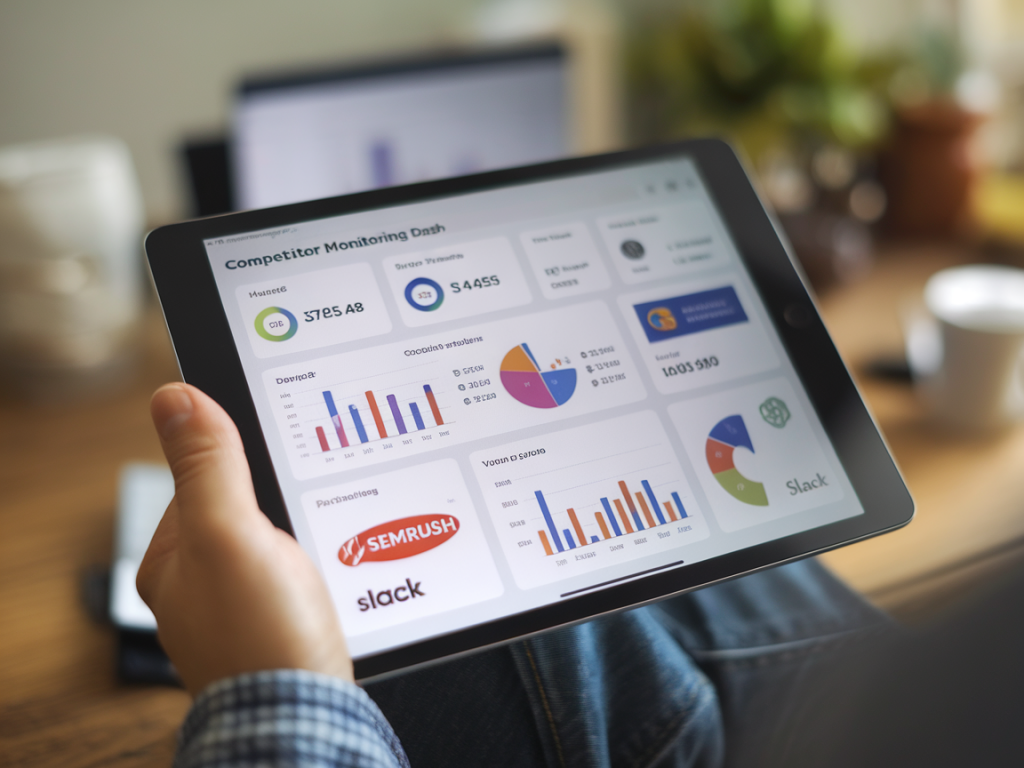
I’m going to walk you through a practical, step-by-step framework I use to build a competitor monitoring dashboard that combines SEMrush, Google Sheets, and real-time Slack alerts. This setup is affordable, flexible, and powerful enough for in-house marketing teams or solo founders. I’ll share the exact data points I track, the sheet structure and formulas I rely on, and the simple automation that delivers timely Slack notifications when something important changes.
Why I build this kind of dashboard
Competitor monitoring rarely requires an overly complex BI tool. What it needs is speed, clarity, and the ability to act. I built this framework because I wanted one place to:
- See shifts in competitor organic visibility and paid activity
- Spot new backlinks or sudden drops in traffic share
- Get an alert when a competitor launches a paid campaign or outranks us on high-value keywords
This approach integrates the best parts of SEMrush (data depth), Google Sheets (flexibility + shareability), and Slack (immediate team visibility).
Core metrics and data sources
Start by choosing the KPIs you’ll actually act on. Here’s what I include by default:
- Organic keywords (total and changes week-over-week)
- Estimated organic traffic (SEMrush estimate)
- Top paid keywords and presence of paid ads
- New/lost backlinks
- Top landing pages by traffic
- Position changes for priority keywords
SEMrush provides most of this via the Domain Overview, Organic Research, Ads Research and Backlinks reports. For automation, I use SEMrush exports (CSV) or the SEMrush API if you have a subscription with API access.
High-level architecture
Here’s the simple flow I use:
- SEMrush exports or API -> Google Sheets (raw data sheets)
- Google Sheets -> processed dashboard (aggregations, conditional formatting)
- Google Apps Script -> Slack via Incoming Webhook (alerts when thresholds hit)
Google Sheets layout I recommend
Set up your workbook with separate tabs to keep things tidy. My typical tabs:
- Readme – notes, refresh cadence, and owner
- Competitors – list of competitor domains and tags (priority, product line, market)
- Raw_Organic_[date] – fresh raw export of organic keywords per competitor
- Raw_Ads_[date] – paid keywords / ad snapshots
- Raw_Backlinks_[date] – raw backlinks export
- Dashboard – summary metrics and visual cues
- Alerts_Log – record of sent alerts
How to import SEMrush data into Sheets
Two pragmatic options:
- Manual CSV export: Export reports from SEMrush (Organic Research, Backlinks, Advertising Research) and import into Sheets. Name files with date stamps.
- API + Apps Script: Use SEMrush API endpoints to pull data programmatically. If you have API credits, this is reliable and repeatable.
Example Apps Script snippet (conceptual) to call SEMrush API and write to a sheet:
// fetch data from SEMrush and append to sheet
const response = UrlFetchApp.fetch(apiUrl); const data = JSON.parse(response.getContentText()); // parse and write rows
Adapt to your API key, endpoint and desired fields. If you don’t want to code, I often schedule a weekly manual export and paste it into the Raw_ tabs.
Key formulas and transformations I use
Here are the building blocks I put in my Dashboard sheet. Replace column letters to match your data.
- Delta calculations: To calculate week-over-week changes for a metric (e.g., Traffic): =current_value - previous_value
- Percentage change: =IF(previous_value=0, "", (current_value/previous_value)-1)
- Top movers (rank changes): Use VLOOKUP or INDEX+MATCH to map current positions to previous positions, then subtract to show movement.
- Conditional flags: =IF(AND(traffic_drop_pct<-0.2), "ALERT", "") — sample rule: flag if traffic dropped >20%
- Unique new backlinks: Use COUNTIFS with date filters on the backlinks export to count new referring domains added in the last 7 days.
Alert rules I recommend
Alerts should be meaningful and actionable. Here are rules I use and why:
- New paid ad detected for a competitor: Trigger when a paid keyword appears in Ads data this week but not last week — signals a campaign launch.
- Top-priority keyword rank change (±3 positions): Trigger when a competitor moves into top 3 or bumps us down multiple positions.
- Traffic share drop > 15% week-over-week: Could indicate an algorithm hit or campaign loss.
- > 50 high-authority backlinks gained in 7 days: This often indicates an outreach effort or viral coverage worth investigating.
How to send Slack alerts from Sheets
I use Slack Incoming Webhooks because they’re simple and reliable. Steps:
- Create a Slack Incoming Webhook for the channel you want to post to.
- Store the webhook URL in a hidden sheet cell (e.g., Readme!B1).
- Write a Google Apps Script function that checks your alert flags and posts messages when new alerts are found.
Minimal Apps Script example (conceptual):
function postSlackAlert(text){ const url = SpreadsheetApp.getActive().getSheetByName('Readme').getRange('B1').getValue(); const payload = JSON.stringify({text:text}); const options = {method:'post', contentType:'application/json', payload:payload}; UrlFetchApp.fetch(url, options); }
Then wrap logic to check the Alerts_Log to avoid duplicate notifications. I log alert IDs or a hash and skip if already sent.
Sample Slack message templates I use
Short, actionable messages work best. Examples:
- Paid Ads: "Alert: Competitor example.com launched a new paid campaign for keyword 'best accounting software'. Check Ads Research: [link]"
- Rank drop: "Warning: example.com improved position for 'tax software' from 7 → 3. Consider updating content or bid strategy."
- Backlink spike: "Backlink spike: competitor.com gained 120 referring domains in 48h (many DA>50). Investigate PR or content syndication."
Maintenance and cadence
I normally refresh raw exports on a weekly cadence for broad monitoring and daily for critical keywords. Practical tips:
- Schedule automatic API pulls (daily/weekly) if you can; otherwise keep a consistent manual export routine.
- Review and tune alert thresholds after the first month — you’ll likely get false positives initially.
- Archive raw exports by date so you can reconstruct trends if something looks off.
Common problems and quick fixes
Here are issues I’ve hit and how I solved them:
- Too many alerts: Raise thresholds, only monitor priority keywords or add a minimum impact filter (e.g., only alert if traffic impact > X).
- API limits: Consolidate requests (batch domains) and cache responses. Use weekly summaries for low-priority competitors.
- Data mismatch: SEMrush and Google Analytics use different methodologies. Use relative changes and patterns, not absolute numbers.
Simple sample dashboard table
| Competitor | Organic Traffic | Traffic Δ (WoW) | Top Paid KW | New Backlinks (7d) | Alert |
|---|---|---|---|---|---|
| competitorA.com | 12,400 | -18% | yes | 34 | Paid ad detected |
| competitorB.com | 8,200 | +6% | no | 2 |
If you want, I can provide a ready-to-copy Google Sheets template with the tabs and Apps Script scaffolded for you. Tell me whether you prefer manual CSV imports or an API-driven approach and which alerts matter most for your business — I’ll tailor the template and script accordingly.